
Beginner website problems in affiliate marketing tend to arrive early, usually within the first few weeks of building. A page refuses to publish, a login stops working, an image lands in the wrong place, or the site you just made cannot be found anywhere. Each of these feels personal when it happens. None of them is.
This walkthrough covers the snags nearly every first-time site builder runs into. For each one you get what it looks like, why it happens, the smallest fix worth trying, and when to hand the question to someone else.
Why a broken page in week one says nothing about your ability
A website is a stack of separate systems: a domain, hosting, a login, an editor, a theme, an image library, and a search engine that decides on its own schedule whether to show your pages. Each one has settings, and each setting has a default that suits someone else’s situation. When you build your first site, you meet all of them at once for the first time, and any one can behave in a way you did not expect.
That is the whole explanation for most week-one trouble. The tools are unfamiliar, and unfamiliar tools produce mistakes that experienced builders have already made and forgotten. Nobody is born knowing why a pasted paragraph comes out in a different font.
The useful question is therefore not “am I cut out for this?” but “what exactly is this system doing?” That one is answerable. A vague feeling of failure has no fix, while a specific problem usually has one.
It also helps to separate two things that feel identical in the moment. A technical snag means a setting, a step, or a piece of information is missing. A lack of ability would mean you could not learn the missing piece even when someone showed you. The first is what you are dealing with. It is fixed by finding the piece, and people find it every day.
The setup stumbles: accounts, logins and settings that will not behave
Setup problems tend to arrive first because setup comes first. The most common versions look like this.

The confirmation email never arrives. You sign up and wait, and nothing shows up. The usual causes are a typo in the email address, a spam or promotions folder, or a delay of a few minutes. Check the address you typed, search every folder for the sender’s name, wait ten minutes, then use the “resend” option once. Requesting it five times in a row can make things worse, because older messages may carry codes that no longer work.
The login says your password is wrong. Often it is right, and the browser has autofilled an older one saved from another account. Type the password by hand, slowly, and watch for a stray space at the end if you pasted it. If that fails, use the password reset link instead of guessing, since repeated wrong attempts can lock an account for a while.
You are logged in but cannot find your site. This happens when you have two accounts, perhaps created under two email addresses, or when you are looking at the wrong dashboard. Write down which email address belongs to which account the moment you create it. A small note in a document or notebook saves a surprising amount of confusion later.
A setting does not seem to do anything. You change it, save it, reload the page, and nothing is different. Two things are worth trying: a hard refresh (hold Shift while clicking reload, or use your browser’s equivalent) and opening the page in a private window. Browsers keep old copies of pages, and the change may be there while you are looking at the stored version.
The smallest fix in every case is the same: change one thing, then check. If you change four settings and the problem goes away, you will not know which one mattered, and if it returns you will start over.
Keep a plain list of your accounts, the email each one uses, and where you set up what. Do not store passwords in that list; use a password manager or your browser’s saved-password feature for those. The list is only so that “which login was this?” never takes an hour.
When the page looks wrong: formatting, images and the editor fighting you
Formatting trouble is the most visible kind, because you can see it, and it makes a page look broken even when the content is fine. These are the ones that come up most.

Text pasted from another document looks strange. Copying from a word processor or a chat window often brings its fonts, sizes, and spacing along. The result is a paragraph that does not match the rest of the page. Paste as plain text instead (most systems offer Ctrl+Shift+V or Cmd+Shift+V), then apply headings and bold inside the editor itself. This single habit prevents a large share of formatting complaints.
Headings look the same as body text, or too large. Headings are set by their level in the editor, such as H2 or H3, and the theme decides how each level looks. If a heading looks wrong, check that you chose a heading level from the menu and did not just make the text bold and bigger. Changing the level is better than changing the font, because the theme then keeps every page consistent.
An image is huge, blurry, or in the wrong place. Photos straight from a phone are often several megabytes and thousands of pixels wide. They load slowly and may overflow the layout. Resize them before uploading, or use the editor’s size options, and choose the alignment for each image in the editor so that text wraps the way you want. If an image sits on its own line when you wanted it beside text, the alignment setting is the first place to look.
Extra blank space or a list that will not behave. Hidden empty paragraphs are usually the cause. Click at the end of the odd gap and press Backspace, or switch to the editor’s code or text view to see what is actually there. If you are unsure what you are looking at in that view, leave it alone and ask, since deleting the wrong tag can break a section.
The editor undoes or jumps around. If it does something strange, save a copy of your text somewhere outside the editor, reload the page, and try again. Drafts are usually saved automatically, but a copy of your own writing costs nothing.
Before you publish, use the preview. It shows you the page as a visitor will see it, and almost every formatting problem is easier to catch there than after the page is live. Check it once on a phone as well, because many visitors will arrive on one.
The “did it even publish?” panic and why a new site seems invisible
This is the snag that discourages people the most, because it can look like the work was for nothing. It splits into two different problems that people tend to confuse.
The page will not publish
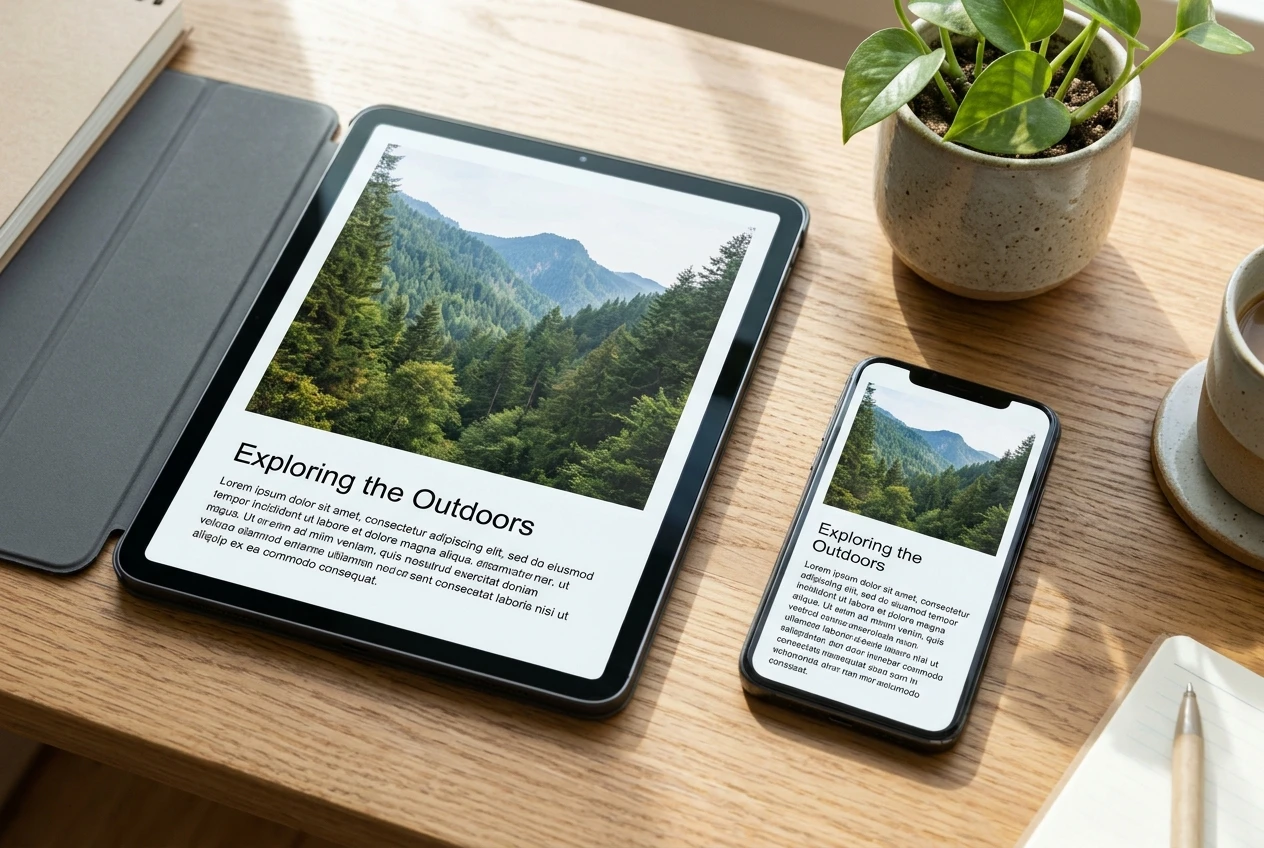
You press the button and nothing seems to happen. First, look at the page’s status. Most editors show whether a page is a draft, scheduled, pending review, or published, and a page set to “scheduled” for a later date will wait until then. Check the date and time on it.
Second, look for an error message, even a small one at the top or bottom of the editor. Read it in full and copy the exact wording. Third, try saving once, reloading the editor, and checking whether the page now appears in your page list. Sometimes the page published and the screen simply did not update.
To confirm, open your site in a private window where you are not logged in and visit the page address. If you see the page there, it is published, and anyone can see it.
The site cannot be found in search
You type your site name into a search engine and it is not there. This is expected for a new site. Search engines have to discover your pages, read them, and decide whether to include them, and that can take days or weeks, sometimes longer. A brand-new site can be fully published and live and still be absent from search results.
A few checks are worth making in the meantime:
- Visit your site’s address directly in a browser. If it loads, the site exists and works.
- Search for your exact web address rather than a topic. This tells you more than searching a keyword.
- Check that your platform does not have a setting asking search engines to ignore the site. Some do, often switched on while a site is being built, and it needs to be off once you want visitors.
- Make sure the page is public and not password-protected or set to private.
If all of those look right, the remaining answer is time, along with publishing more pages. A site with one page gives a search engine very little to work with.
Being absent from search in the first weeks says nothing about whether the site is good. If you want to know what a realistic early timeline looks like, what your first 90 days should actually look like covers what to expect and what not to measure yet.
A simple three-step routine for any technical problem
Every problem above can be handled with the same routine. It is useful because it works on problems you have never seen before.
Step one: describe it
Write down what happened in plain words. What were you trying to do? What did you expect? What actually happened? Include the exact text of any error message and the name of the page or screen where it appeared.
Writing it out often solves the problem on its own, because the act of being specific shows you the step you skipped. When it does not, you now have a description that someone else can act on.
Step two: try one fix
Pick the single most likely cause and test only that. Reload the page, switch browsers, paste as plain text, check the status, or reset the password. Then check whether the problem has changed.
Changing one thing at a time matters more than which fix you pick. If it works, you know why. If it does not, you have ruled something out and can move to the next possibility. Undo any change that made no difference, so your settings stay as they were.
Step three: ask with details
If one or two fixes have not worked, ask. A good question contains everything someone needs to answer it without coming back to you:
- What you were trying to do
- What you expected and what happened
- The exact error wording, copied and not paraphrased
- A screenshot of the screen
- What you have already tried
- The browser and device you are using
Compare “My page is broken, help” with “I clicked Publish on my third post, the status still says Draft, and I see no error. I have reloaded and tried a second browser.” The second gets a useful reply, often within minutes, because the person answering can see where you are.

Knowing when to stop wrestling alone and where to take the question
Persistence is a good quality, but spending three evenings on a login problem is not persistence. It is time taken from building the site. A reasonable limit is to describe the problem, try two sensible fixes, and then ask. If you have been stuck on the same thing for more than an hour with no new idea, that is the signal.
Asking early is also how you learn faster. Someone who has met the problem before can name the cause in a sentence, and that sentence teaches you something you will recognize next time. If you want a closer look at how to judge this, how long is too long to struggle alone goes through the signs.
Where you take the question matters too. General search results will give you a dozen answers for a dozen different setups, and many of them are out of date. A place where the people answering know the tools you are actually using, and can see your situation, gets you to the right answer sooner. A community of other builders is useful for that reason: someone there has probably hit the same snag in the last few weeks.
Keep a short note of each problem you solve, with one line on the cause and one on the fix. After a month you will have a personal reference, and you will see that you have solved more than you thought.
If you want a clear order to work in and people who have already solved these problems when you hit one, take a look at how Guided Path works inside Wealthy Affiliate and start there.